Article
How to Print Your iPhone Calendar: 4 Ways That Work
The iPhone Calendar app has no Print button. Here are four ways to get your schedule on paper: a screenshot, Calendar on a Mac, Google or Outlook on the web, and a print app.
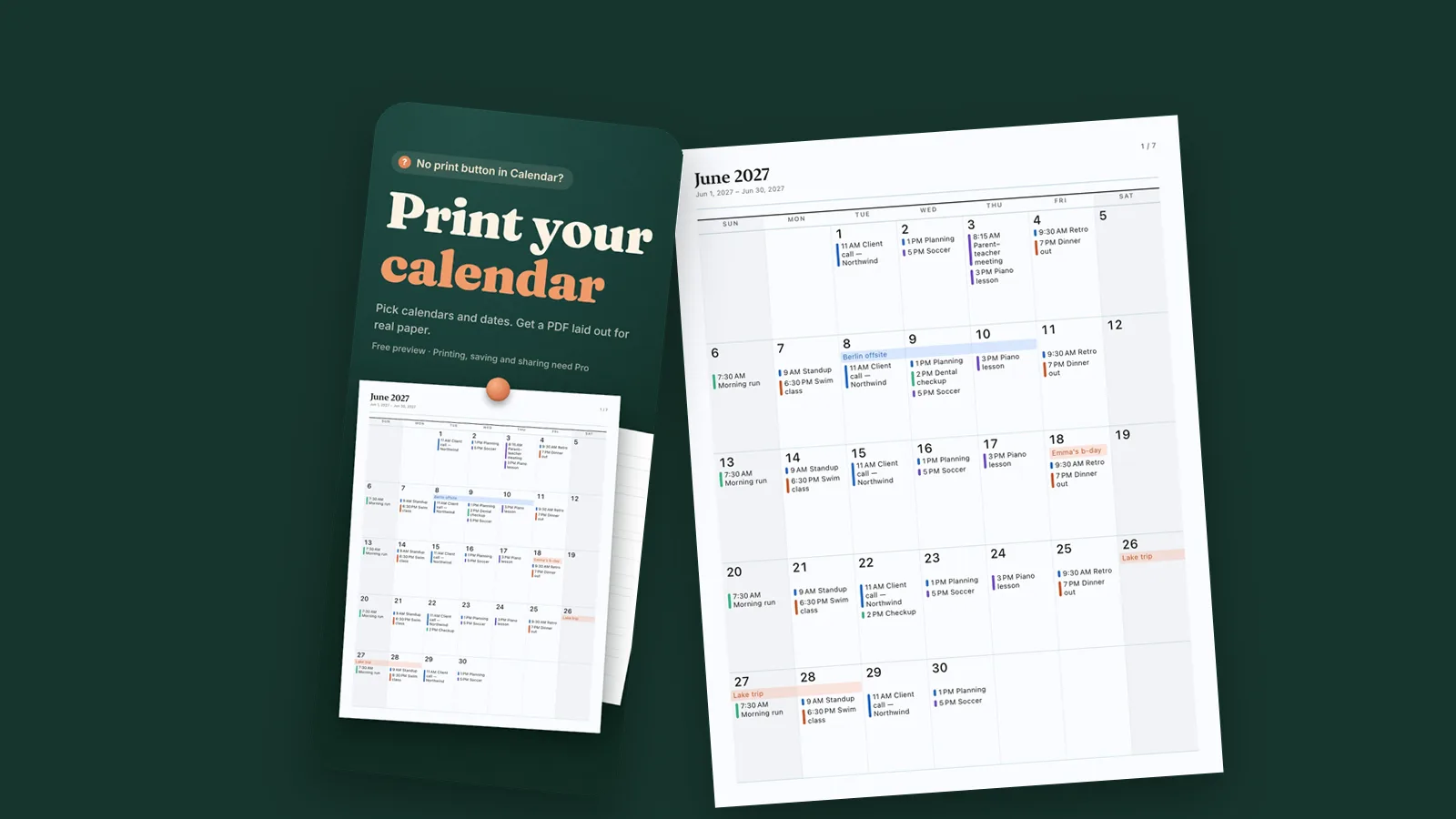
Short answer: the Calendar app on iPhone and iPad has no Print or Save as PDF command. To get your schedule on paper you can:
- take a screenshot of the month and print it,
- print from Calendar on a Mac signed in to the same accounts,
- print from the Google Calendar or Outlook website, if your events live there, or
- use an app on the iPhone that turns Apple Calendar into a printable PDF.
The rest of this guide shows each way step by step, what it can’t do, and which one to pick.
Why there’s no Print button on iPhone
Apple’s Calendar app on iPhone is built for looking up and adding events, not for paper. You won’t find Print in the Share sheet, in the event menu or in Settings. iCloud.com shows your calendars in a browser, but it has no Print button either. The only Apple app that prints a calendar is Calendar on a Mac.
Way 1: Screenshot the month and print it
This works on any iPhone and costs nothing.
- Open Calendar and go to the month you want.
- On iOS 18 or later, tap the view button at the top of the month and choose Details, so the days show event titles instead of colored bars.
- Take a screenshot: press the side button and the volume up button together.
- Tap the screenshot thumbnail, then tap the Share button and choose Print.
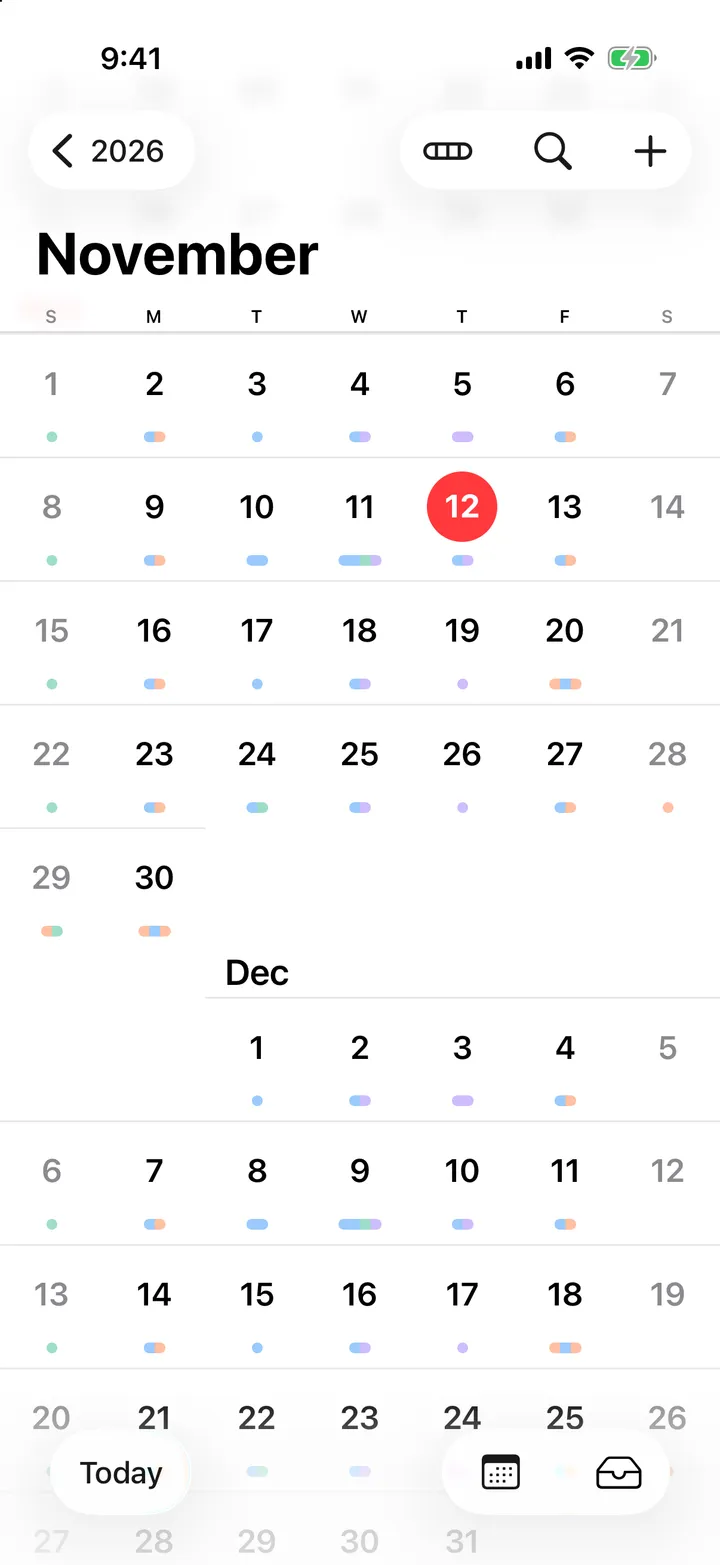
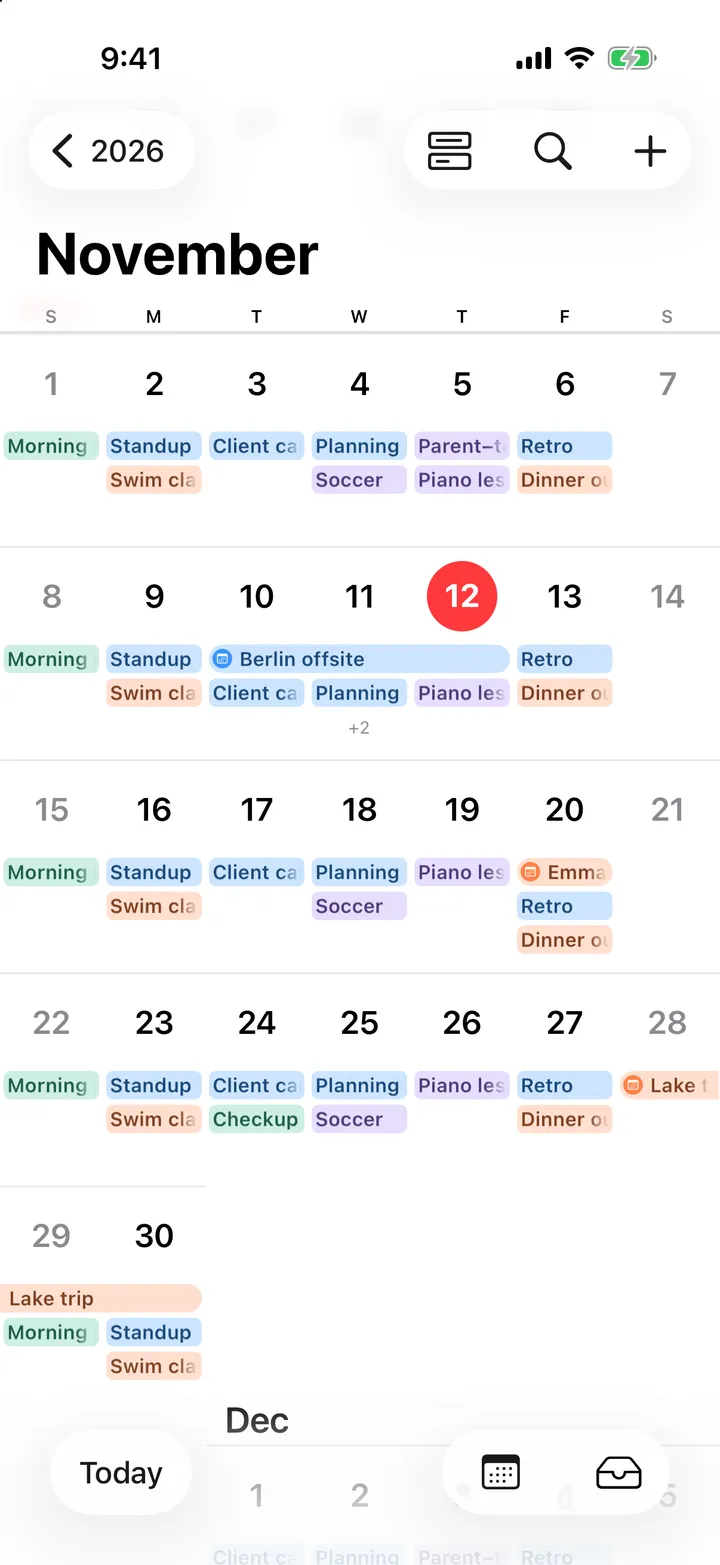
What it can’t do:
- You get one screen at a time. A busy month may need several screenshots.
- Titles are cut off, and times, locations and notes are not shown.
- The image is the size of your phone screen, so it looks soft and small on Letter or A4 paper.
A screenshot is fine for a quick reminder on the fridge. For anything you will read closely, use one of the ways below.
Way 2: Print from Calendar on a Mac
If you have a Mac signed in to the same Apple Account, it can print everything your iPhone shows, including Google and Outlook calendars added to the Mac.
- Open Calendar on the Mac.
- Choose File > Print.
- Pick a view (Day, Week, Month or List), the date range and the calendars to include.
- Under Options, choose what to show, such as all-day events, a calendar key or black and white, and set the text size.
- Click Continue, then print, or choose Save as PDF from the PDF menu.
What it can’t do: you need a Mac, and the layouts are fixed. There is no large-print preset, and reminders are not printed with your events.
Way 3: Print from Google Calendar or Outlook on the web
If your events live in Google Calendar or Outlook, their websites can print them from a computer.
Google Calendar: open calendar.google.com on a computer, choose the view and dates, then click the Settings gear and choose Print. You can set the font size, orientation and black and white before printing.
Outlook: open Outlook on the web, go to the calendar and use the Print button in the toolbar.
What it can’t do: each website prints only its own calendars. If you use Google for work and iCloud for family, you will get two separate printouts. On a phone the mobile sites have no Print option, so you need a computer.
Way 4: Print from the iPhone with an app
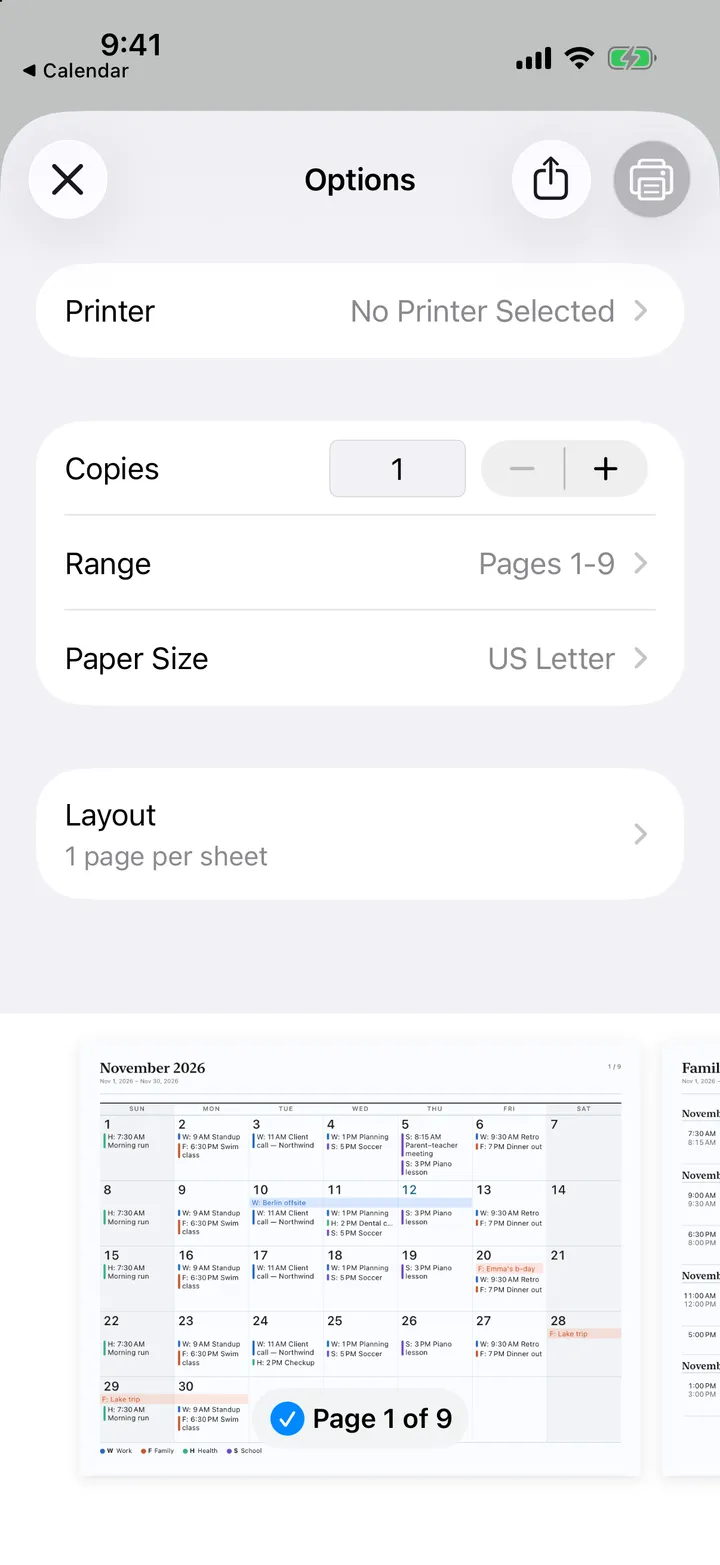
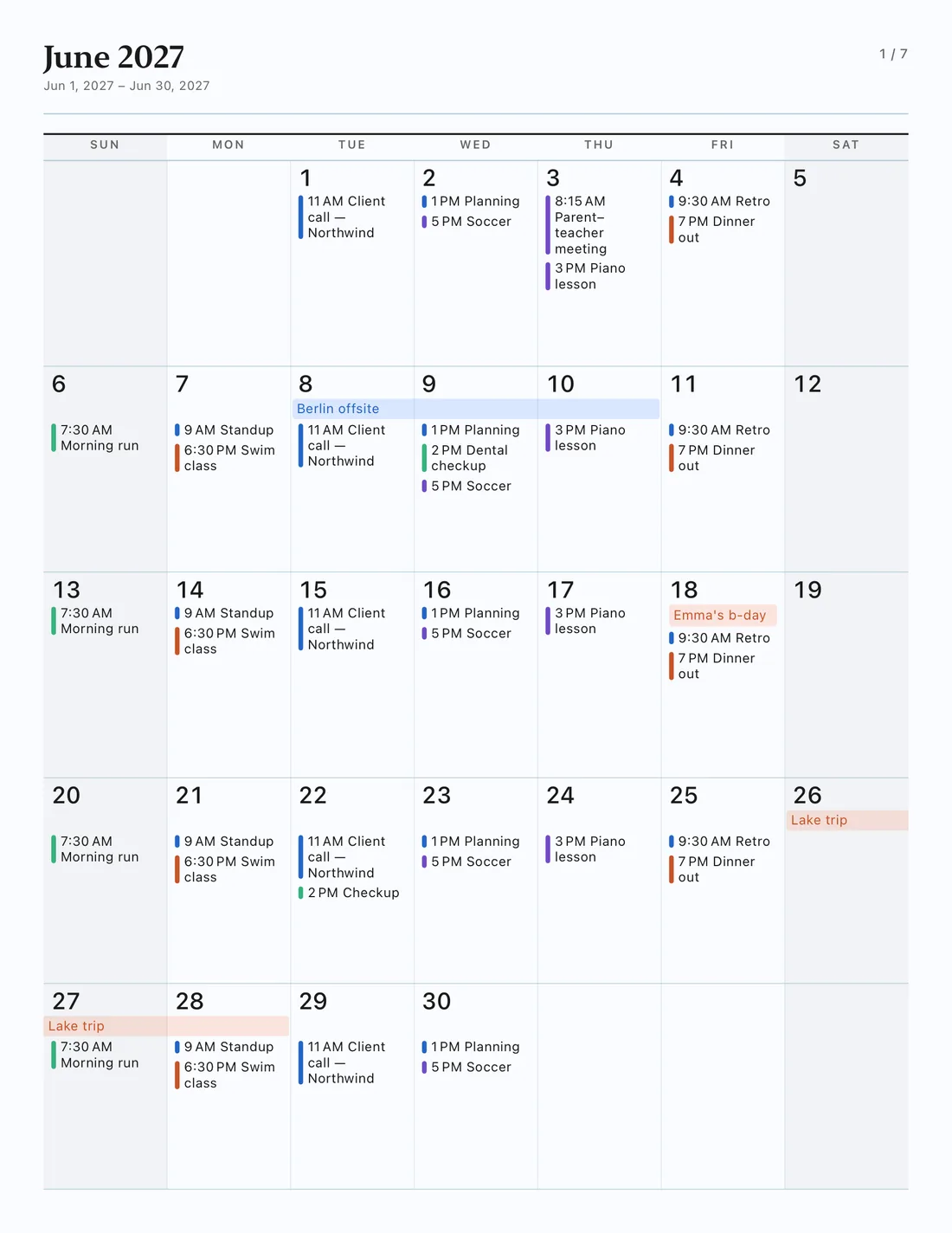
A print app reads Apple Calendar on the iPhone and lays it out as a PDF that fits real paper. Because it reads Apple Calendar, it also includes Google, Outlook and Exchange calendars, as long as the account is added to the iPhone and its calendars are turned on.
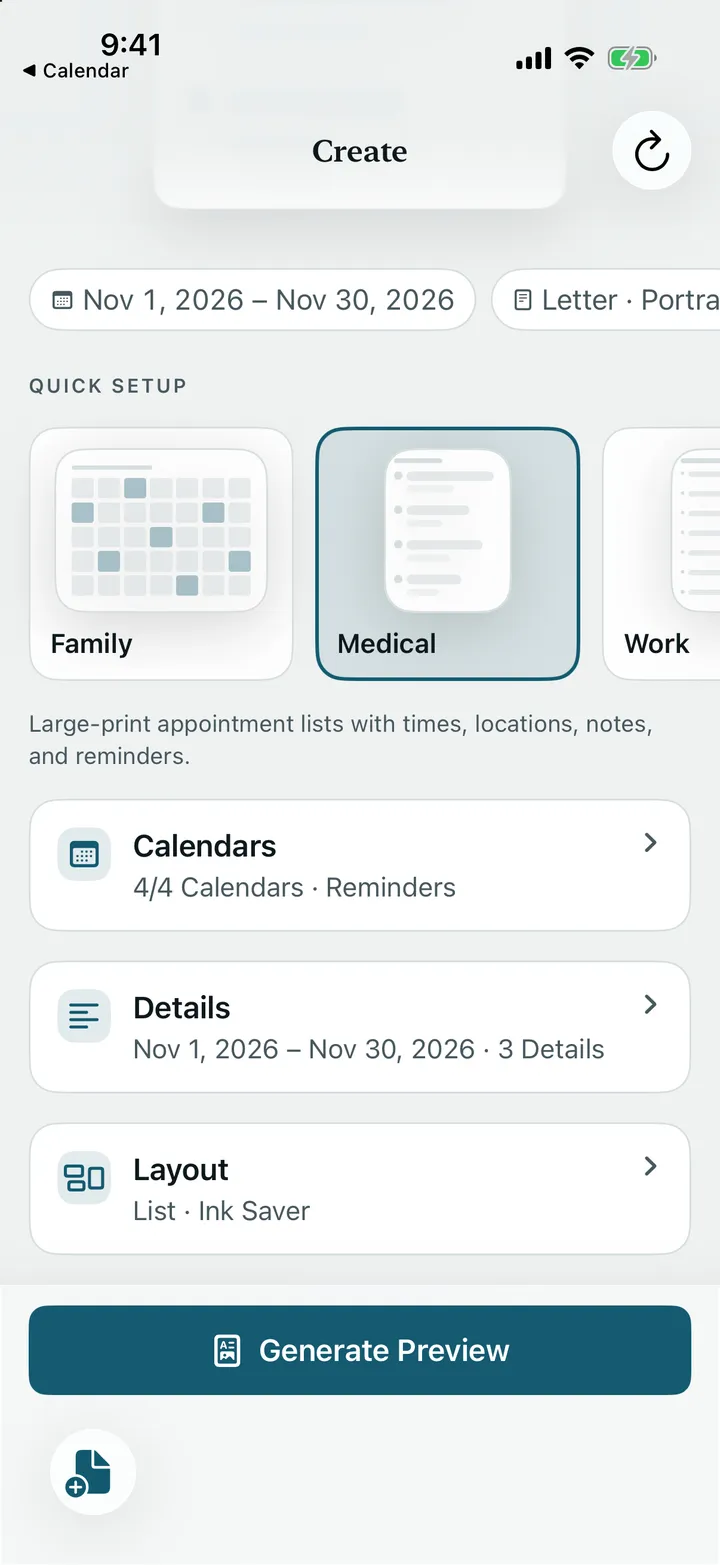
Here is how it works with our app, Print Calendar PDF:
- Install it and allow calendar access.
- Pick the calendars and reminder lists to include, and the dates.
- Choose a layout (month, week, day or list), Letter or A4, portrait or landscape, and the text size.
- Check the free preview, then print to any AirPrint printer, save the PDF to Files or share it. Printing, saving and sharing need Pro.
Which way should you use?
| If you want… | Use |
|---|---|
| A quick copy of one month, for free | A screenshot |
| Everything printed, and you have a Mac | Calendar on a Mac |
| Only your Google or Outlook events | The Google Calendar or Outlook website |
| Several accounts on one page, from the iPhone | A print app |
| Large text for a parent, or notes and locations on the page | A print app with large print and detail options |
Print apps compared
Several apps print Apple Calendar from the iPhone. They differ mostly in layouts, extras and how you pay. This table is based on each app’s App Store listing, last checked in November 2026.
| App | How you pay | Layouts | Reminders | Notes |
|---|---|---|---|---|
| PDF Calendar - Print & Share | Free with ads; subscription or lifetime purchase removes them | Day, week, month, list | Not listed | Shares to email and cloud apps |
| CalPrint | Paid up front | Day, week, month, list | Yes | Can print to printers without AirPrint |
| Cal Printer | Free, one-time unlock | Day, week, month, list | Yes | AirPrint or PDF |
| Print Calendar PDF (ours) | Free preview; subscription or lifetime to print | Month, week, day, list, year archive | Yes | Large Print, Ink Saver, detail appendix, no ads |
Check the App Store page of any app before you buy, because prices and features change.
Fixing common problems
Some events are missing. In the Calendar app, tap Calendars at the bottom and make sure every calendar you need is checked. For Google or Outlook, open the Settings app, go to the Calendar accounts and check that the account has Calendars turned on.
The week starts on the wrong day. Most print options let you pick Sunday or Monday. On a Mac, Calendar follows the setting in Calendar > Settings > General.
The text is too small to read. Choose a week or day layout for busy weeks, or a large-print option if your app has one.
Color printing uses too much ink. Print in black and white. On a Mac, tick Black and white in the print options; in Print Calendar PDF, choose the Ink Saver style.
Can I print my Reminders list too?
Yes. Since iOS 14.5, the Reminders app can print a single list: open the list, tap the More button and choose Print. If you want reminders on the same page as your events, use a print app that supports reminders.
Frequently asked questions
Can I print my iPhone calendar without a computer? Yes, with a screenshot or a print app on the iPhone. Apple’s own printing needs a Mac.
Does iCloud.com let me print my calendar? No. iCloud.com shows your calendars in a browser but has no Print button.
Can I print a month with full event titles from an iPhone? Not with the Calendar app alone, which shortens titles to fit each day. A print app can wrap long titles onto several lines.
Will a print app include my Google Calendar events? Yes, if the Google account is added to the iPhone and its calendars are turned on in Calendar. The app reads Apple Calendar and does not sign in to Google itself.
Do I need a printer that supports AirPrint? To print straight from the iPhone, yes. Otherwise save the PDF and print it from a computer, or take the file to a print shop.
If you only need a blank calendar to fill in by hand, our free printable calendar maker makes one in your browser with holidays included.